Schedule your posts by asking.
Connect Postzora to your AI assistant. Ask for next week’s posts in your own words, and it drafts them for each network, finds your free slots and puts them on your calendar.
Works with
- Claude
- ChatGPT
- Claude Code
- Cursor
- VS Code
- Windsurf
Turn our launch notes into three posts for LinkedIn and Bluesky next week, in our free slots.
list_channels4 channels, Europe/Londonnext_free_slotTue 09:00, Wed 12:30, Thu 17:00schedule_post3 posts scheduled
Done. Three posts are on your calendar, each with a shorter version for Bluesky:
- Tue 09:00It’s here: scheduling that fits around your week, not the other way round.
- Wed 12:30Three things we learned building our launch calendar in one afternoon.
- Thu 17:00Your questions about the launch, answered by the team that built it.
See it from start to finish.
Connect an assistant, ask for a week of posts, and watch them land on the calendar and publish everywhere. 32 seconds.
Connected in about a minute.
No code for Claude or ChatGPT: add Postzora as a connector, sign in, and choose what it may do.
- 1
Add Postzora to your assistant
In Claude or ChatGPT, add a custom connector with this address. In Cursor or VS Code, add it with an API key.
https://api.postzora.com/mcp - 2
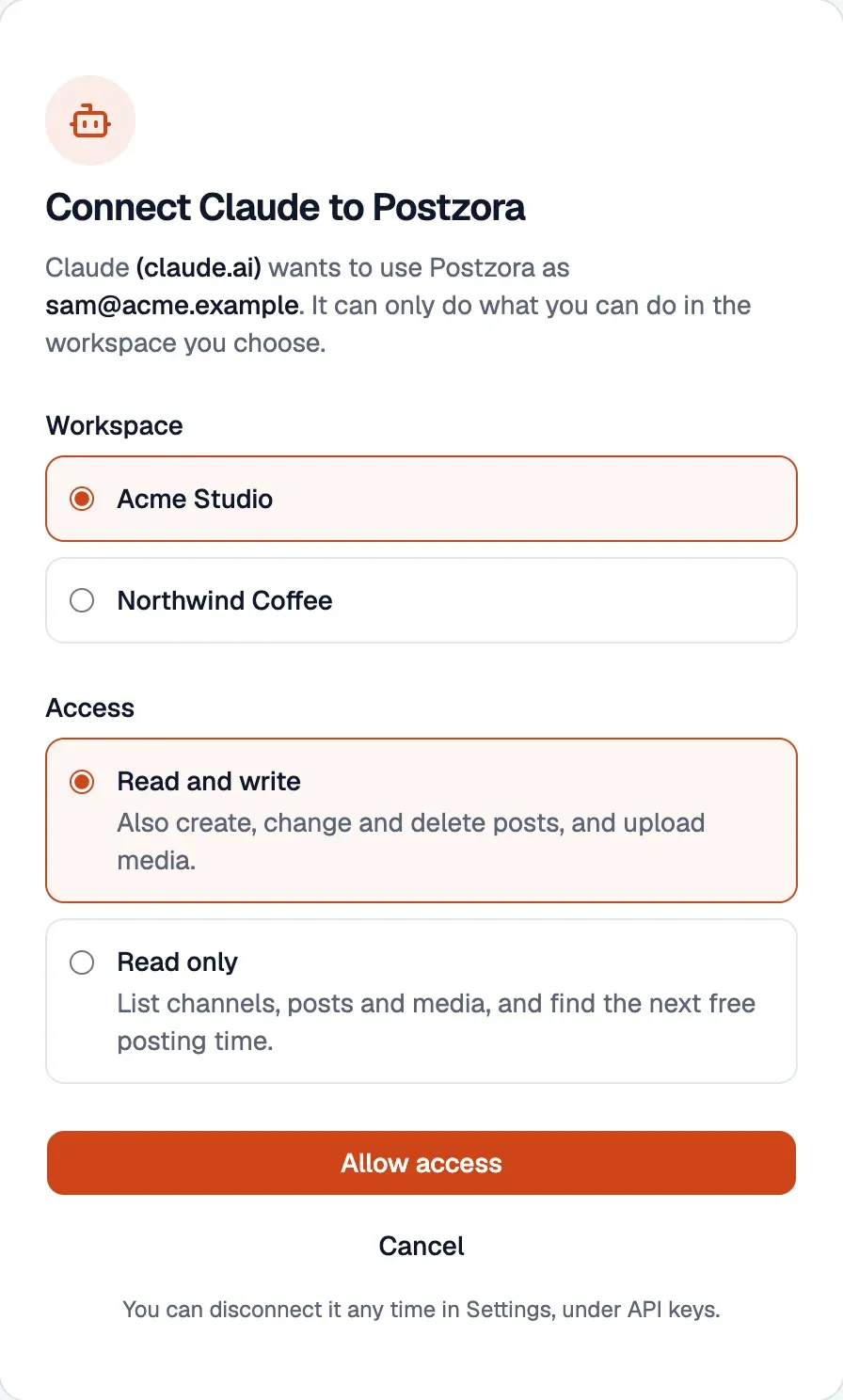
Approve it in Postzora
Sign in, pick the workspace it works in, and choose read only or read and write.
- 3
Ask for what you need
Your assistant looks up your channels and posting times on its own, and shows you what it plans to schedule.
Plan next week’s posts from our newsletter and use the free slots.
Ask the way you’d ask a colleague.
Your assistant knows your channels, posting times, calendar and media library, so plain words are enough.
“What’s going out next week, and where are the gaps?”
“Turn this blog post into a LinkedIn post and a short Bluesky one, and schedule both for tomorrow at 9.”
“Write a tip a day from this document and put them in our free slots from Monday.”
“Move everything on Friday to Monday at the same time.”
“Did yesterday’s announcement publish everywhere? Send me the links.”
“Use the product photo from our media library on Thursday’s post.”
Helpful, and on a short leash.
An assistant works through the same rules as the people on your team.
One workspace, your role
You pick the workspace when you connect. The assistant can do what you can do there, and nothing more.
Approvals still apply
If your posts need sign-off, so do the ones your assistant writes. They wait in Approvals like any other.
Every post is checked
Character limits, media rules and network settings are checked before anything is saved, exactly as in the composer.
Read only when you want it
Give an assistant read only access and the tools that change things simply aren’t there.
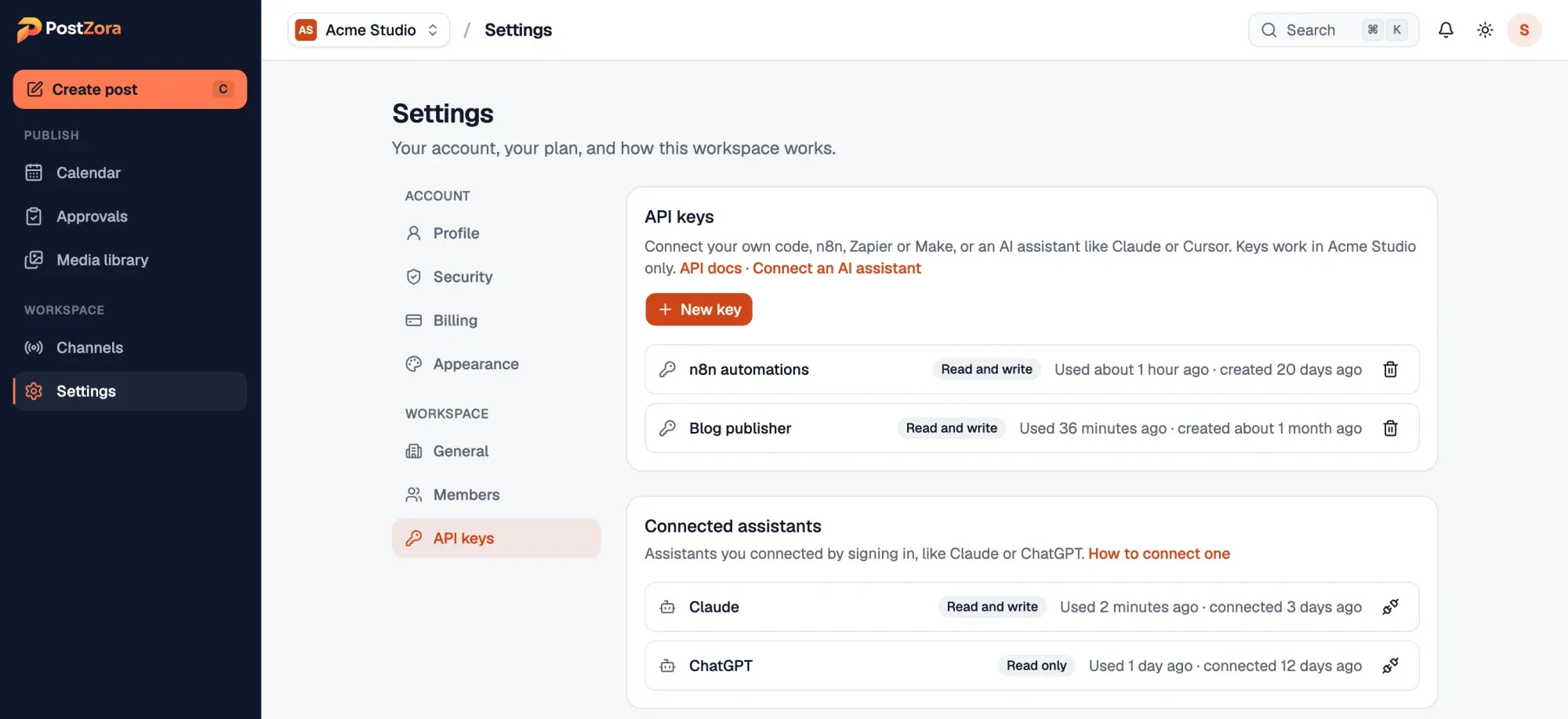
Disconnect in one click
Every connected assistant is listed in Settings. Disconnect one and it loses access straight away.
An open standard
Postzora speaks the Model Context Protocol, so it works with any assistant that supports remote MCP servers.
Building your own agent?
Point it at the MCP server, or call the REST API directly. Both use the same workspace keys, checks and limits.
Questions about AI assistants
Still deciding? The free trial is the quickest way to find out. It takes about a minute to set up.
Which AI assistants work with Postzora?
Claude and ChatGPT connect by signing in to Postzora. Claude Code, Cursor, VS Code and Windsurf connect with an API key. Any other assistant that supports remote MCP servers works too.
Does it cost extra?
No. AI assistants and the API are included on every plan, with the same limits as the rest of your workspace. Your assistant’s own plan is separate.
Can an assistant publish without me seeing it?
Only as far as you allow. Give it read only access to keep it to looking, or switch on approvals so every post it schedules waits for review. Good assistants also confirm with you before publishing straight away.
What can it see?
The workspace you chose when you connected it: its channels, posts and media library. Never your other workspaces, your billing or your account settings.
Can it upload images?
It can use anything in your media library. Upload images and videos in Postzora, then ask your assistant to attach them by name.
How do I stop it?
Open Settings, then API keys, and disconnect the assistant or revoke its key. It loses access immediately.
Let your assistant fill next week’s calendar.
Try every feature free for 7 days and connect your first channel in about a minute. Cancel any time.